How DSH Mobile Remote works
Pair an Android phone with a computer running DeepSeek Harness, then open the real DSH Web UI through an outbound-only Relay connection.
The connection path
DeepSeek Harness continues to listen on 127.0.0.1:3080. The Companion plugin opens an outbound WSS connection to the configured Relay. The phone authenticates with its account, asks for a short-lived WebView ticket, and opens the forwarded DSH interface.
What stays local
The DSH listener and device credential stay on the computer. No inbound public port is created.
What crosses the Relay
Opaque encrypted frames. HTTP, SSE, and WebSocket content is decrypted only by Mobile and Companion.
Create and manage the pairing
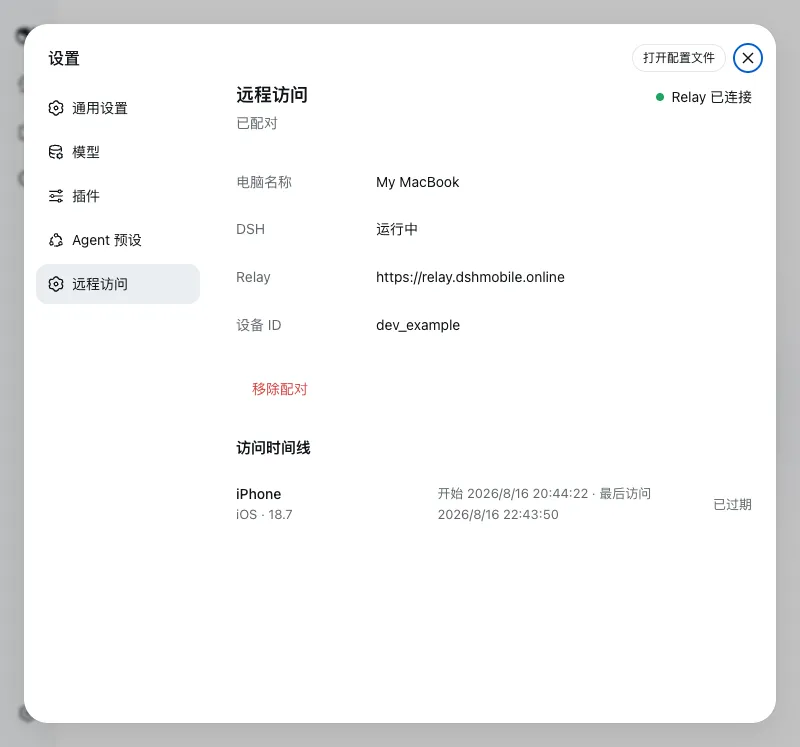
Open Settings > Remote Access in DSH. Create the encrypted QR code, scan it from Mobile, view recent phone access, and remove the pairing from the same screen. Six-digit-only pairing is disabled in 0.1.4 because it cannot carry the encryption key.
Use the real Harness interface
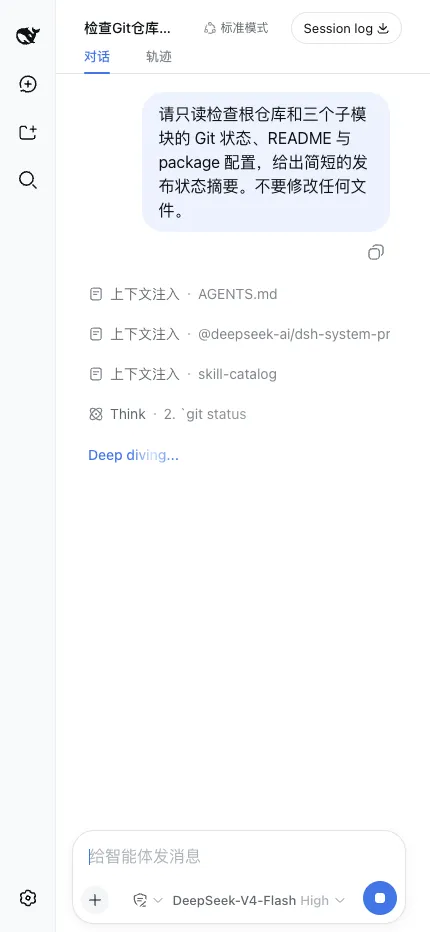
The remote WebView keeps the normal workspace, mode, model, task composer, conversation, injected context, reasoning status, elapsed time, and stop control. It is not a separate task API or a simplified replica.
When the computer is unavailable
The phone shows the computer as offline when the computer or DSH is stopped, or when the plugin is disconnected from the Relay. The Companion follows the DSH Web process and does not need a separate background process.
Ready to try it? Download the Android app. For a controlled network boundary, follow theprivate Relay guide.