DSH Mobile communityGuides2 min read
How to run DeepSeek Harness from an Android phone
Pair DSH Mobile with a computer, open the real Harness Web UI, and submit a normal task without exposing a public computer port.
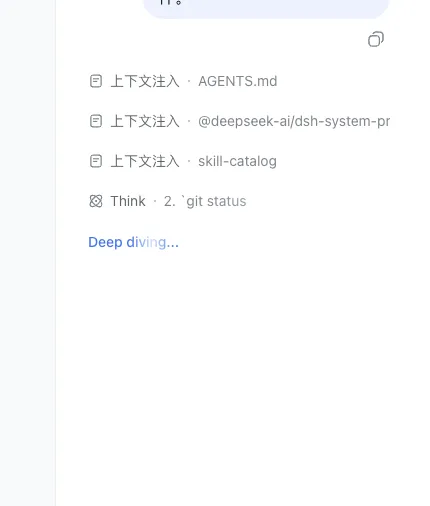
DSH Mobile Remote opens the normal DeepSeek Harness Web UI from a paired Android phone. It does not replace Harness with a separate task API. The phone receives the same workspace, mode, model, task composer, conversation, reasoning state, elapsed time, and stop control.
This guide covers the public Android release and the pinned DSH plugin.
What you need
- A computer with Node.js 18 or newer.
- DeepSeek Harness
0.1.0-rc.6. - An Android phone running Android 8.0 or newer.
- HTTPS access to the hosted Relay or a compatible private Relay.
DeepSeek Harness is in Developer Preview. The plugin pins a tested version so compatibility changes are explicit.
Install the Android app
Open the latest DSH Mobile Suite release and download:
dsh-mobile-android.apkSHA256SUMS
Verify the download before installation:
shasum -a 256 -c SHA256SUMSAndroid may ask you to allow the browser or file manager to install unknown apps. The application ID is io.github.apriljk.dshremote.
Install the DSH plugin
Run the pinned GitHub installation command on the computer:
npx @deepseek-ai/dsh plugin --profile web add "github:april-jk/dsh-mobile-plugin#v0.1.4"
npx @deepseek-ai/dsh web
The plugin follows the DSH Web process. You do not need to start a separate Companion process.
Pair the phone
- Register or sign in from the Android app.
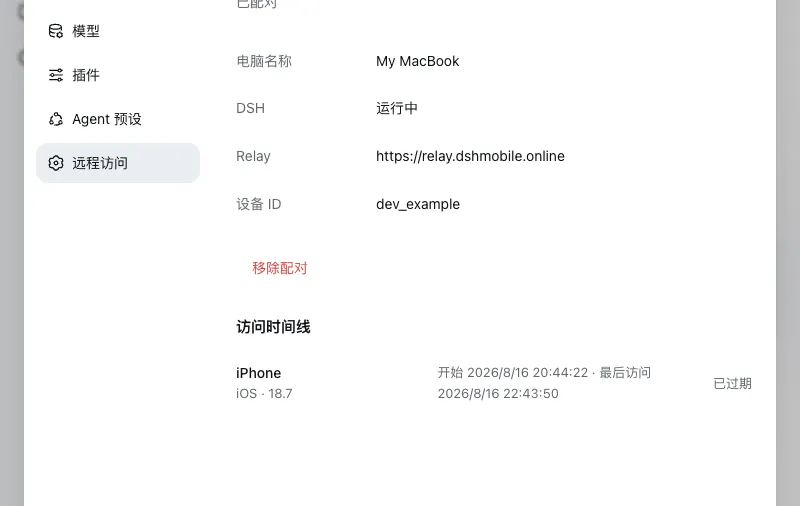
- Open Settings > Remote Access in the computer’s DSH Web UI.
- Create an encrypted pairing QR code.
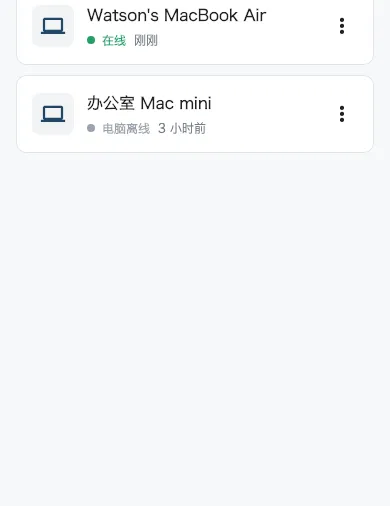
- Tap + in the mobile computer list.
- Scan the QR code. Version 0.1.4 does not allow six-digit-only pairing because it cannot establish the E2EE key.
- Select the online computer.
The phone opens the real DSH interface after it receives a short-lived WebView ticket.
Submit a task
Choose a workspace, create a task, select the mode and model, then submit instructions as you would on the computer. The conversation and active reasoning status update in the remote WebView.
The computer shows as offline when DSH stops or the plugin loses its Relay connection.
Understand the security boundary
DSH stays bound to 127.0.0.1:3080. The computer opens only an outbound WSS connection. The mobile app never receives the computer’s device token.
Version 0.1.4 encrypts DSH HTTP, SSE, and WebSocket content end to end between Mobile and Companion. The Relay routes opaque frames but can still observe account/device associations, connection timing, and ciphertext sizes. The PSK profile does not provide forward secrecy. Read the full security model or deploy a private Relay before using it with sensitive work.